
Usage Guide
Everything PageWatcher does, in the order you will meet it.
PageWatcher watches one part of a web page — a price, a version number, a stock badge, a counter — and tells you the moment it changes. It remembers what was there, re-reads it on a schedule, and keeps a log of every value it has seen.
1. Install and sign in
Install PageWatcher from the Chrome Web Store, then click the puzzle-piece icon in Chrome's toolbar and pin PageWatcher so its icon is always visible — the icon is where the change badge appears.
Open the popup and press Continue with Google. Your watchers are stored in your account, so signing in on another computer brings them along.
2. Add your first watcher
- Open the page you want to watch in a tab.
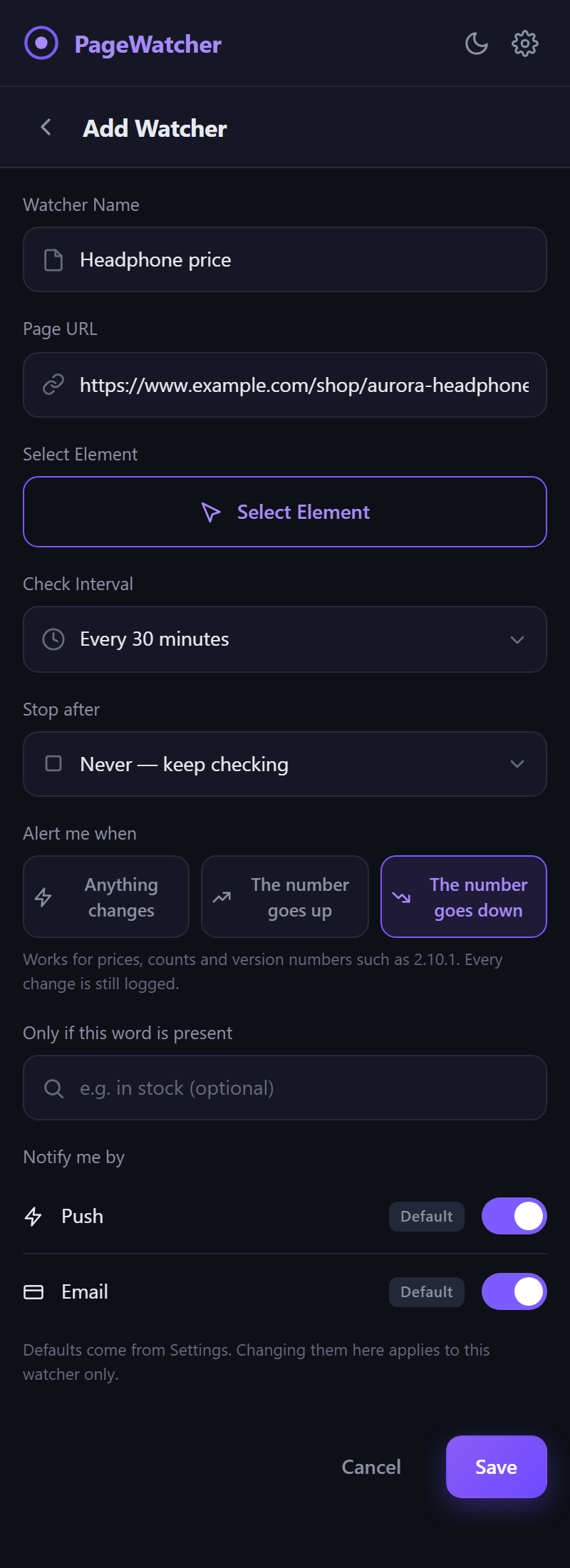
- Click the PageWatcher icon, then Add Watcher. The page URL is filled in for you.
- Give the watcher a name you will recognise in a notification, such as Headphone price.
- Press Select Element. The popup closes and the page gets a highlight that follows your mouse — see the next section.
- Back in the popup, choose how often to check and what to be alerted about, then Save. A first reading is taken straight away.
3. Picking the right element
Move the mouse over the page: whatever is under it gets a purple outline and a small label naming it. Click to lock the selection. The card at the bottom shows the exact text that will be watched.
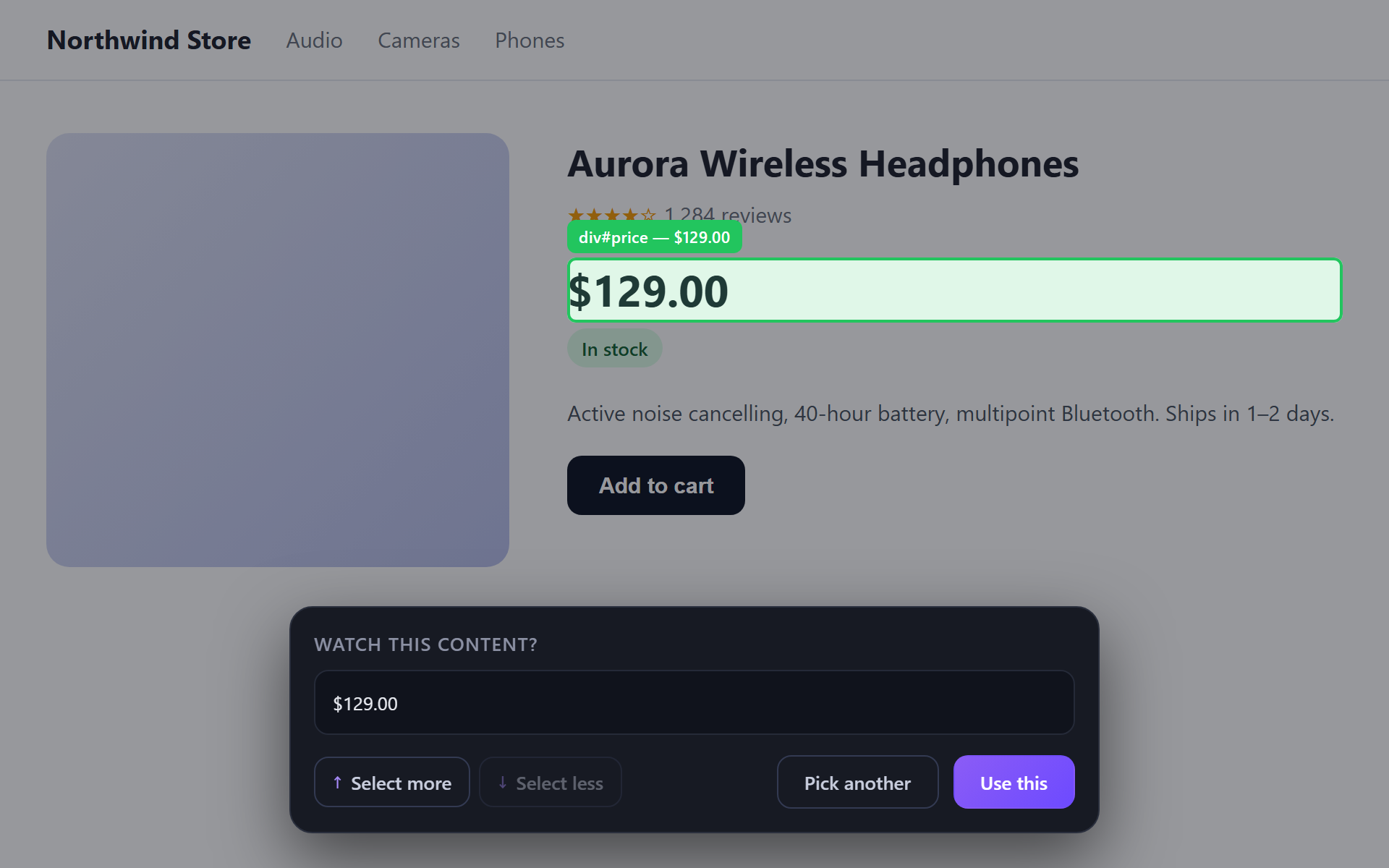
- Select more (or ↑) widens the selection to the element around it — use it when the outline only caught part of what you want.
- Select less (or ↓) narrows it to the first piece of text inside — use it when the outline caught a whole block and you only want one line of it.
- Pick another unlocks and lets you hover again. Esc cancels.
- Use this confirms and reopens the popup with the element filled in.
Pick the smallest element that contains what you care about. A price on its own changes only when the price changes; a whole product card also changes when a review count ticks up.
4. Deciding what you want to hear about
Every change is recorded in the watcher's log. These options decide which of them are worth a notification.
- Check Interval
- How often the page is re-read. Free accounts can check every 30 minutes or slower; Pro every 5 minutes or slower.
- Stop after
- Pause the watcher automatically after a set number of checks — handy for a one-off "did it ship yet". The default is to keep checking. Resuming a finished watcher starts its count over.
- Alert me when
- Anything changes is the default. The number goes up and
The number goes down read the first number in the text and only alert in that direction —
a price drop, a version bump. Prices like
$1,299.00or1.234,56 €and versions like2.10.1orv2.10are understood. If a reading has no number at all, you are alerted anyway rather than left in the dark. - Only if this word is present
- A word or phrase that must appear in the new content for an alert to fire, such as in stock or available. Case does not matter. Combine it with a direction if you like: both must hold.
- Notify me by
- Push (a desktop notification) and Email. Each toggle starts on Default, meaning it follows the switch in Settings. Touch a toggle and it becomes this watcher's own setting; Use default hands it back. Email alerts need a Pro account.
5. The watcher list
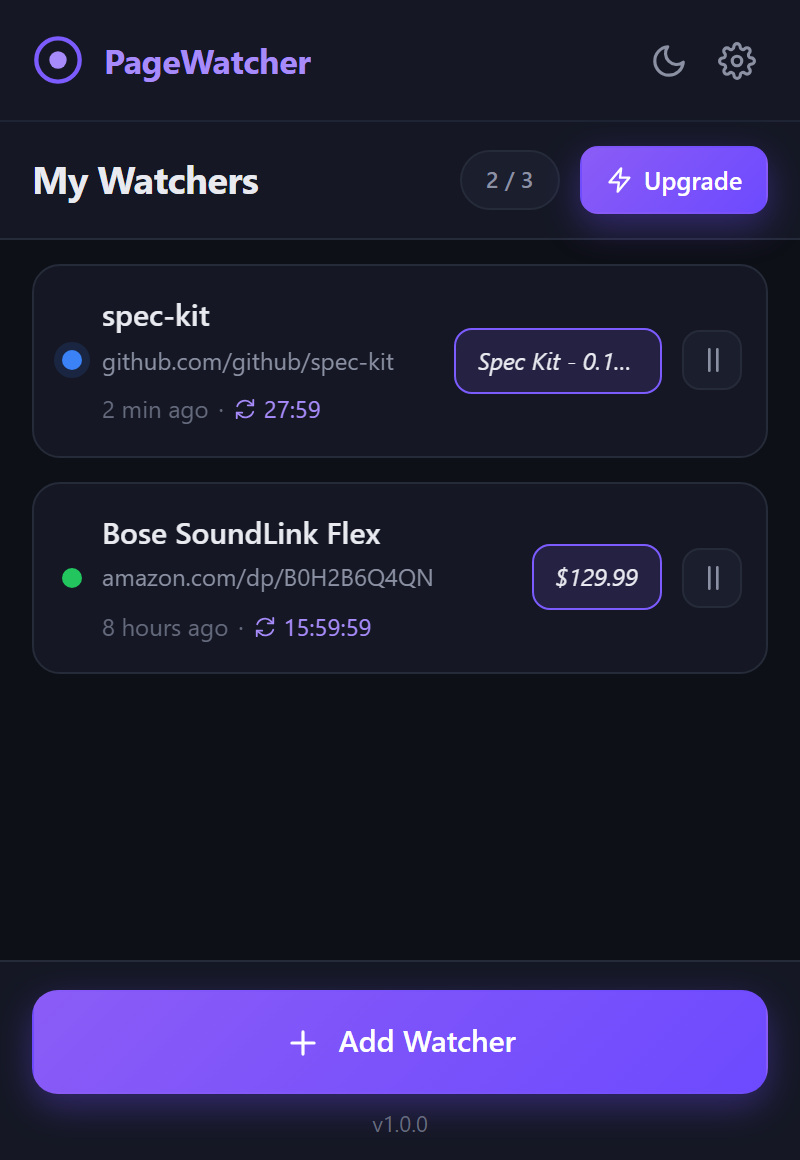
- The dot is green when the last check found no change, blue when the last check found one, red when the check failed, and grey when the watcher is paused.
- The countdown ticks down to the next scheduled check.
- Click a row to open the watcher.
- The pause / play button on the right stops and resumes that watcher without opening it.
- The header shows how many of your plan's watchers are in use; on a free account there is an Upgrade button beside it.
6. A watcher's page
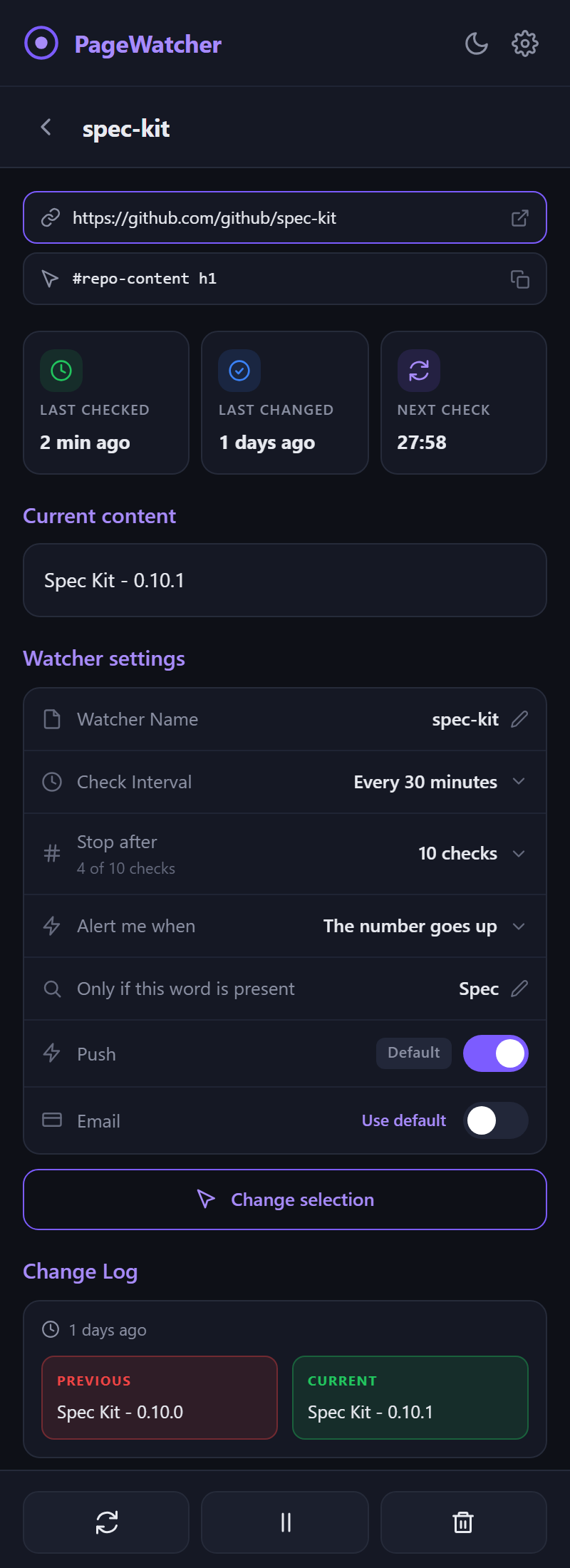
- The three cards show when it was last checked, when the content last changed, and the countdown to the next check.
- Current content is what was read last. Click it to copy it.
- Watcher settings holds everything the form asked for — name, interval, check limit (with how many checks have been used), alert direction, keyword, and whether push and email are on (and whether they follow the Settings default). Every one of them is edited right here and saved the moment it changes; there is no separate edit screen. A new interval reschedules the next check from the last one; a new check limit starts the count over and wakes a watcher that had stopped at the old one.
- Change selection opens the page with the picker so you can choose a different element. The watcher then starts fresh from the new element's content.
- The Change Log lists every recorded change, newest first, with the previous and current value side by side. Click either value to copy it.
- The three buttons at the bottom are, left to right: Check now (reads the page immediately; this does not count towards a check limit), Pause / Resume, and Delete (removes the watcher with its history). Hover a button to see its name.
7. Notifications and the badge
When a change passes the watcher's conditions you get a desktop notification (if Push is on), an email (if Email is on and you are on Pro), and a count on the PageWatcher toolbar icon showing how many watchers have changed since you last looked. Opening the popup clears the count. Clicking a notification opens the page.
Changes found by the server while Chrome was closed (Pro) are picked up the next time Chrome runs, and show the badge and notification then.
8. Settings
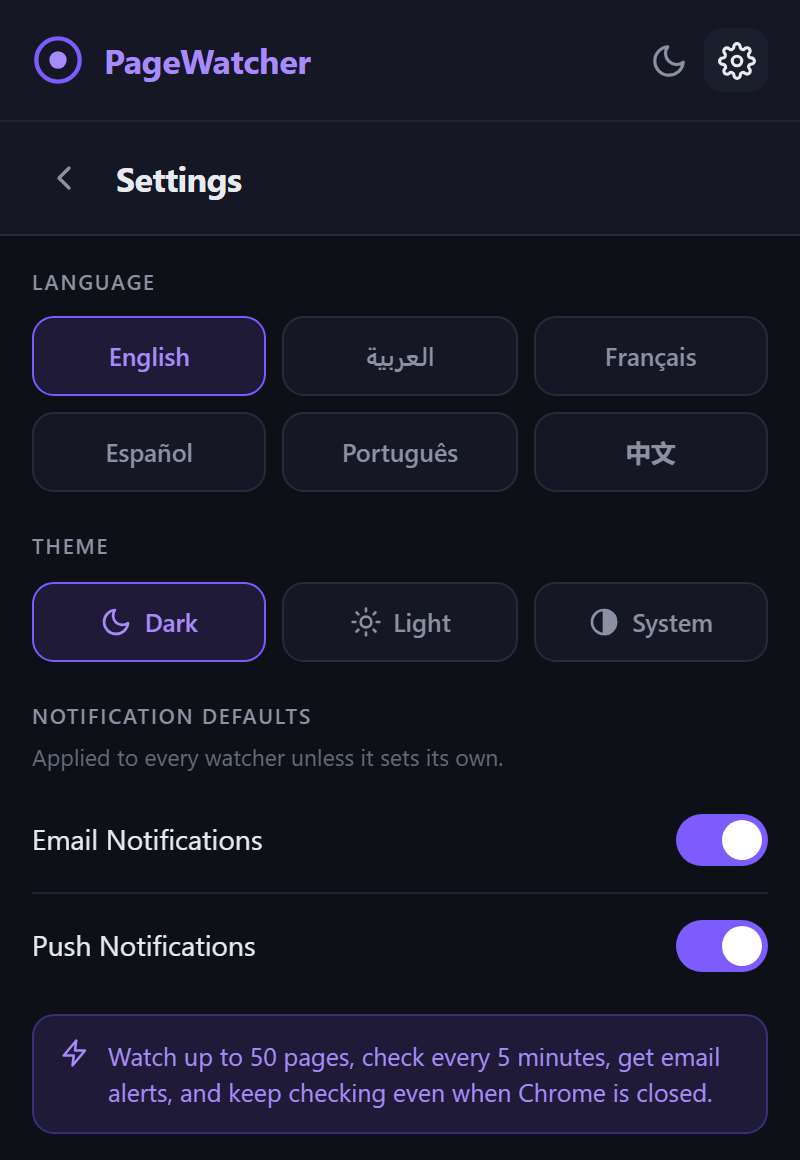
- Language: English, Arabic, French, Spanish, Portuguese or Chinese. Arabic flips the whole layout to right-to-left.
- Theme: Dark, Light, or System to follow your operating system. The moon / sun button in the popup header cycles through the same three without opening Settings.
- Notification defaults: the Push and Email switches every watcher inherits unless it sets its own (section 4).
- Account: your plan, and Upgrade or Manage billing.
9. Free and Pro
| Free | Pro | |
|---|---|---|
| Watchers | 3 | 50 |
| Fastest check | every 30 minutes | every 5 minutes |
| Desktop notifications | yes | yes |
| Email alerts | — | yes |
| Checks while Chrome is closed | — | yes |
Pro is $4.99 a month or $39.99 a year, billed by Lemon Squeezy. There are no refunds. Cancel any time from Settings → Manage billing: cancelling before the renewal date stops the next charge, and Pro stays active until the period you already paid for ends.
If your plan ever allows fewer watchers than you have — after a Pro subscription ends, say — the oldest ones keep running and the rest are paused as Over plan limit until you delete a watcher or upgrade.
10. When something goes wrong
- "Could not read that page"
- The site did not answer, or answered with an error. The watcher backs off and tries again later. If it keeps failing, open the page yourself — it may be down or asking you to sign in.
- "The selected element is no longer on the page"
- The site changed its layout. Open the watcher, press Change selection, and pick the element again.
- "The page was still loading when we checked"
- The page builds itself with JavaScript and took too long. PageWatcher retries automatically.
- "Chrome does not allow selecting elements on this page"
- Chrome blocks extensions on its own pages (
chrome://…), the Web Store, and some PDF viewers. Those cannot be watched. - A page that needs you to be logged in
- Checks made from your browser send the site your cookies, so pages you are logged in to work. Server-side checks (Pro, while Chrome is closed) do not have your cookies and may see the logged-out version.
Questions or ideas: moath.developments@gmail.com. What is stored, and how to delete it, is in the Privacy Policy.